 Measure Killer
How do I make semantic model and dataflow refreshes faster?
Find the refreshes that take longest on the Semantic models and Dataflows tabs, then remove the columns nothing uses. Every unused column is data the refresh loads, compresses and recalculates for nothing, in a model as much as in the dataflow that feeds it.
Last updated · November 6, 2026
Steps
Find the slow refreshes
- Run Tenant Analysis or Limited Tenant Analysis with Include refresh events and schedule ticked, and click Analyze on the models and dataflows (details).
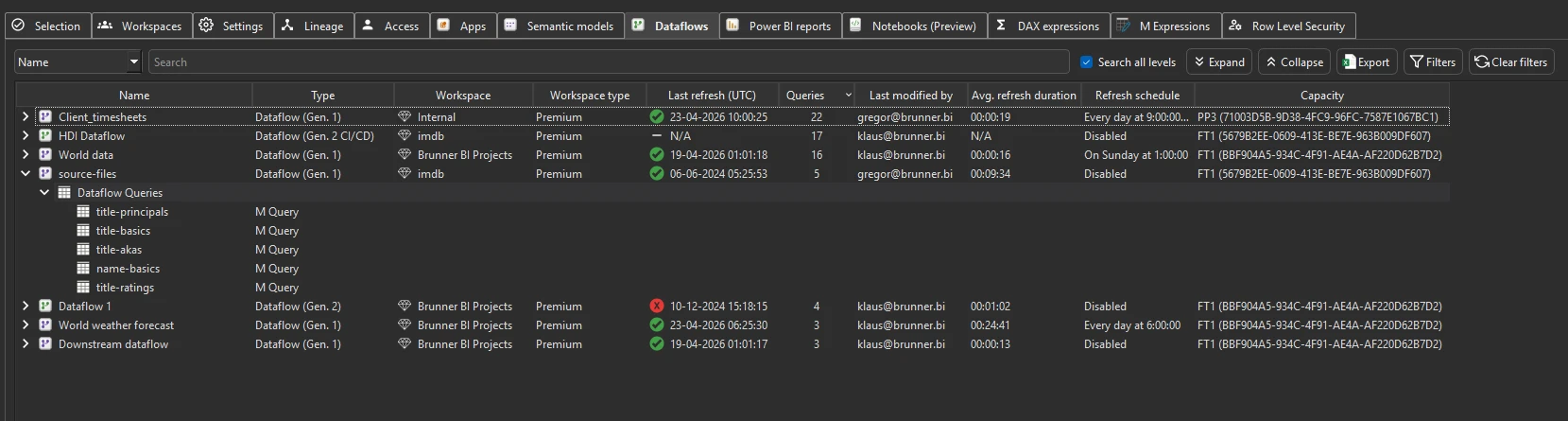
- On the Semantic models and Dataflows tabs, sort Avg. refresh duration descending. Right-click an item and pick View refresh events for every run and its duration.
- On the Semantic models tab, look at Potential savings for the same models: a slow refresh on a model that is mostly unused is the easiest win (details).
Semantic model: remove its unused columns
- Scan the model with Shared model online, so every report on it counts, and remove the unused columns and measures with a clean TMDL or the 1-click cleanup (details).
Dataflow: remove the columns nothing downstream uses
- Open Admin modes → Dataflow Analysis, pick the dataflow and analyze it. The Results tab with Unused lists the columns no downstream dataflow, model or report uses (details).
- Remove them in the dataflow’s Power Query editor. The models that read from the dataflow refresh faster too.
Then compare
- Refresh, scan again and compare Avg. refresh duration and CU (s) with the numbers from step 2.
What you see
Go deeper
Something wrong or out of date on this page?