 Measure Killer
Access & permissions tracking
Audit who has access to every workspace and item across your Power BI / Fabric tenant — and find the leaks.
Last updated · June 26, 2026
What you get
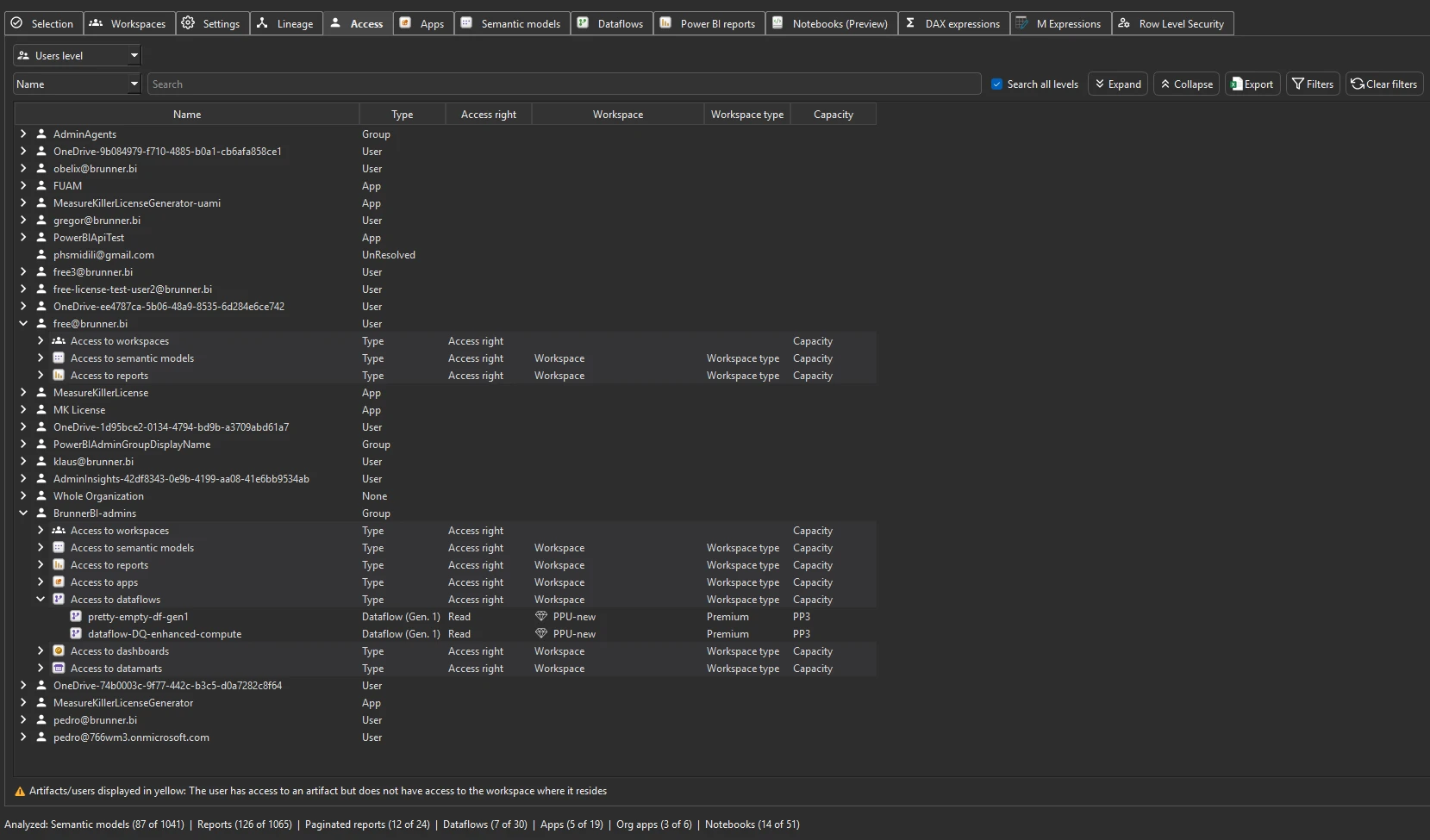
For every workspace and item across your tenant, the Access view lists who has what permission — Admins, Members, Contributors, Viewers, and any service principals with workspace or item-level grants. You can filter to a single user to see every workspace and item they can reach, or filter to a single item to see everyone who can reach it.
The view is the answer to the questions most governance teams cannot answer out of the box:
- Which workspaces does this person have access to?
- Who can see this particular report?
- Are there service principals with workspace permissions we don’t recognize?
- Which workspaces have personal accounts as Admins?
Every item type — including Fabric
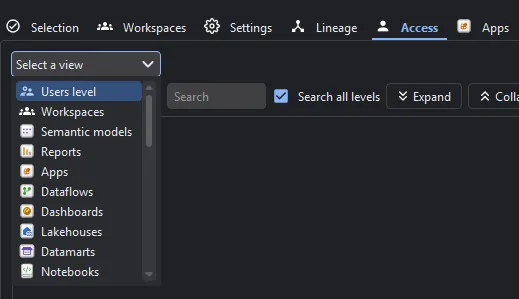
The Access view isn’t limited to workspaces and reports. The Select a view dropdown (top-left) switches the table between every Power BI and Fabric item type Measure Killer tracks — Users level, Workspaces, Semantic models, Reports, Apps, Dataflows, Dashboards, Lakehouses, Notebooks, and more — so you can audit access to a Fabric item the same way you audit a report.
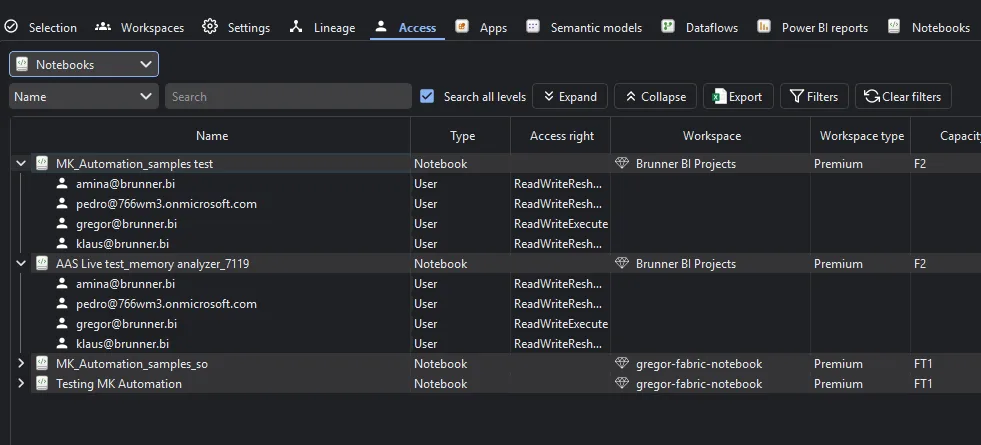
Pick Notebooks, for example, and the table lists every Fabric notebook with the users and groups that can reach it and their exact access right (e.g. ReadWriteReshareExecute, ReadWriteExecute), alongside the workspace, workspace type, and capacity.
Why it requires Fabric Admin
Most Measure Killer features work in Limited tenant analysis mode, which needs only Power BI workspace membership. The Access view is the exception: it has to enumerate workspace role assignments and per-item permission scopes across the entire tenant, which is information only a Fabric Administrator (formerly Power BI Service Administrator) can see.
If your current account is not a Fabric Admin, the Access tab will load empty and Measure Killer will show a permission warning at the top of the pane. Have a Fabric Admin run the tool, or request the role for the account that runs Measure Killer.
A known blind spot — group membership
Measure Killer can see which security groups, Azure AD groups, or Entra groups have access to a workspace or item — but it cannot resolve who is inside those groups. Group membership lives in Entra ID and is not exposed through the Power BI / Fabric admin APIs that the Access view reads.
In practice this means: if a workspace is shared with BI-Analysts-Global,
you will see that group on the access list, but you will not see the
individual people inside it. To get effective per-user access, combine the
MK Access export with a group-membership export from Entra ID.
Run the analysis
- Open Measure Killer desktop and sign in with a Fabric Admin account (or trigger the run via your MK Automation Notebook).
- Open Tenant analysis and start any tenant operation — a full scan, a workspace-level scan, or just browsing the tenant inventory all populate the Access view.
- Switch to the Access tab.
- Use the filter row at the top to narrow by user, group, workspace, or item.
Common workflows
Audit a leaving employee. Filter the Access view to the person’s email. You get a single screen listing every workspace and item they can reach, with the permission level for each. Hand that to IT for offboarding — or remove their access in bulk right from Tenant Analysis (admins only).
Find over-shared reports. Sort items by the number of distinct users with access. Anything in the top of the list that is meant to be internal-only is a candidate for a permission review.
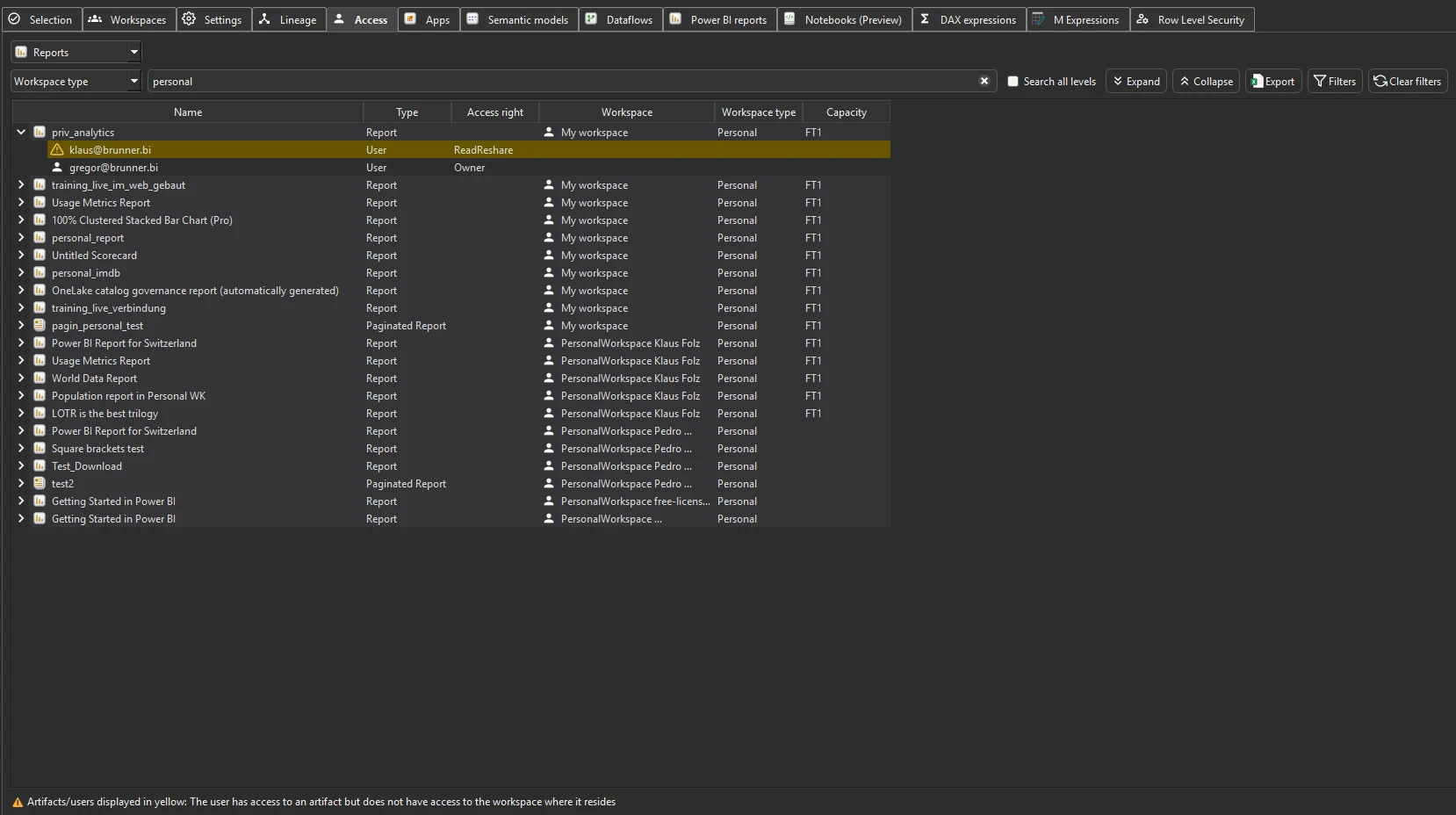
Audit personal workspaces. Switch to the Reports view and filter the Workspace type to Personal to expose who is sharing content out of their personal workspaces — the classic governance blind spot. See Audit personal workspaces.
Spot unexpected service principals. Filter the Access view to
Service principal as the principal type. Anything that you don’t have a
provisioning record for is worth investigating.
What to do with the findings
- Export to Excel — click Export in the toolbar to export the full access inventory to Excel for offboarding checklists, access reviews, or compliance documentation.
- Export as JSON — paid editions can also export as raw JSON for integration with a SIEM or access-review workflow.
Exports require a paid license (see the trial note above).
Related
- Run a tenant-wide scan — the scan that populates the Access tab
- Apps & audiences — app-level access and audience membership (complements workspace-level access)
- Row-level security — RLS roles and assignments (complements workspace/item access)
- Grant or remove workspace access in bulk — act on what you find: bulk add/remove a user or AD group across workspaces (admins only)
- Audit personal workspaces — shine a light on the “My workspace” governance black box