 Measure Killer
Dataflows inventory (Gen1 + Gen2)
Every dataflow in the tenant (Gen1 + Gen2) — type, workspace, refresh status and duration, schedule, owner, capacity — with full M/Power Query code searchable.
Last updated · July 7, 2026
What you get
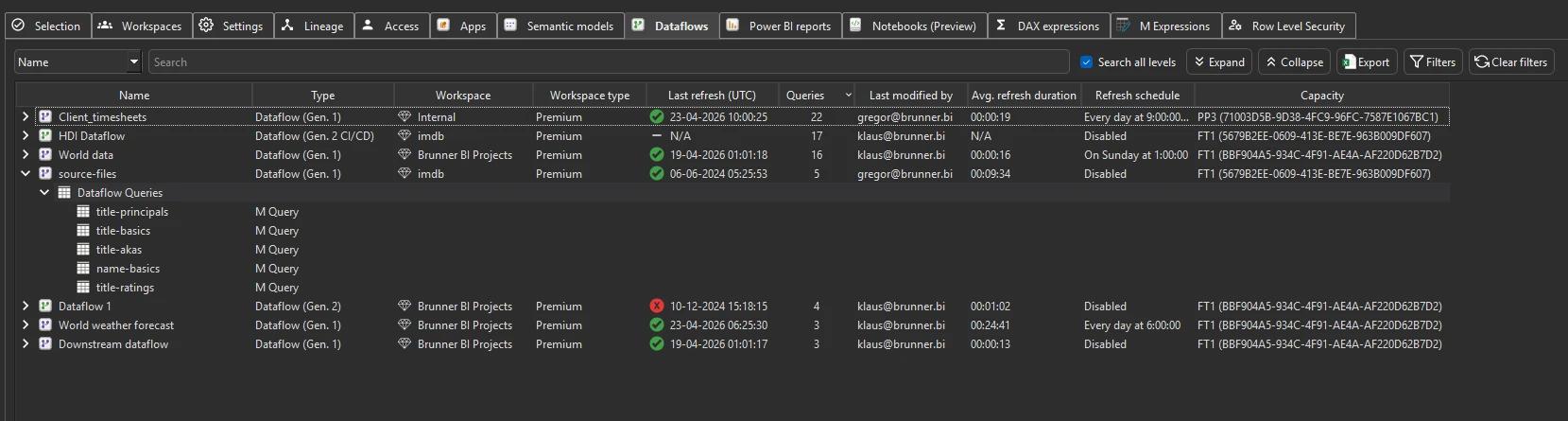
Every dataflow (Gen1 and Gen2) from the scan — its M/Power Query code, query count, refresh health, schedule, owner, and hosting capacity. Searchable across all M expressions — useful for finding which dataflows reference a specific data source or table.
For each dataflow you see:
- Name — expand to see Dataflow Queries and each individual
M Query - Type —
Dataflow (Gen. 1),Dataflow (Gen. 2), orDataflow (Gen. 2 CI/CD) - Workspace and Workspace type (e.g. Premium)
- Last refresh (UTC) — timestamp with a success/failure status icon (green check, red ✗, or
N/A) - Queries — number of Power Query queries inside the dataflow
- Last modified by — who last edited the dataflow (not available in Limited Tenant Analysis)
- Avg. refresh duration — average refresh time (
HH:MM:SS) - Refresh schedule — the configured schedule (e.g. Every day at 9:00), or Disabled (not available in Limited Tenant Analysis)
- CU (s) (new in v2.9.5) — the dataflow’s Capacity Unit consumption for the default 14-day window, populated after fetching Capacity metrics (which holds the longer history)
- Capacity — the capacity hosting the dataflow (name + ID)
Expand any dataflow to see its full M/Power Query code. Right-click any dataflow for two drill-ins:
- View end-to-end lineage — all upstream data sources and downstream models and dataflows (see End-to-end data lineage in Power BI).
- View refresh events — the dataflow’s full refresh history (see Refresh events).
Run the analysis
- Run a tenant-wide scan and complete Phase 2 by selecting items and clicking Analyze.
- Switch to the Dataflows tab.
- Use the search bar to find specific data sources, table names, or M functions across all dataflow code.
Common workflows
- Find every dataflow that references a data source. Use the search bar to search across all M expressions — type a server name, database name, or connection string fragment to find every dataflow that connects to it.
- Identify unused dataflows. Right-click a dataflow and choose View end-to-end lineage — one with no downstream models or dataflows may be abandoned and safe to delete.
- Audit refresh health. Sort by Last refresh (UTC) to find dataflows with failed refreshes, or by Avg. refresh duration to spot the slowest. Expand to see the M code and diagnose connection or transformation issues.
- Plan a data source migration. Before retiring a data source, search for its name to find every dataflow (and model) that references it. Build the migration plan from the results.
What to do with the findings
- Export to Excel — click Export in the toolbar to export the full dataflow inventory to Excel for documentation or migration planning.
- Export as JSON — paid editions can also export as raw JSON, including M code, for downstream analysis or documentation.
- Share the
.measurekillerfile — hand the scan to a colleague for review.
Related
- M Expressions — search M code across models and dataflows together
- End-to-end data lineage in Power BI — trace dependencies from data sources through dataflows to reports
- Run a tenant-wide scan — the scan that populates this tab