 Measure Killer
Report subscriptions
See every Power BI and paginated-report subscription in your tenant — owner, recipients, frequency, format. Catch ones that leak reports or quietly burn capacity.
Last updated · July 7, 2026
What you get
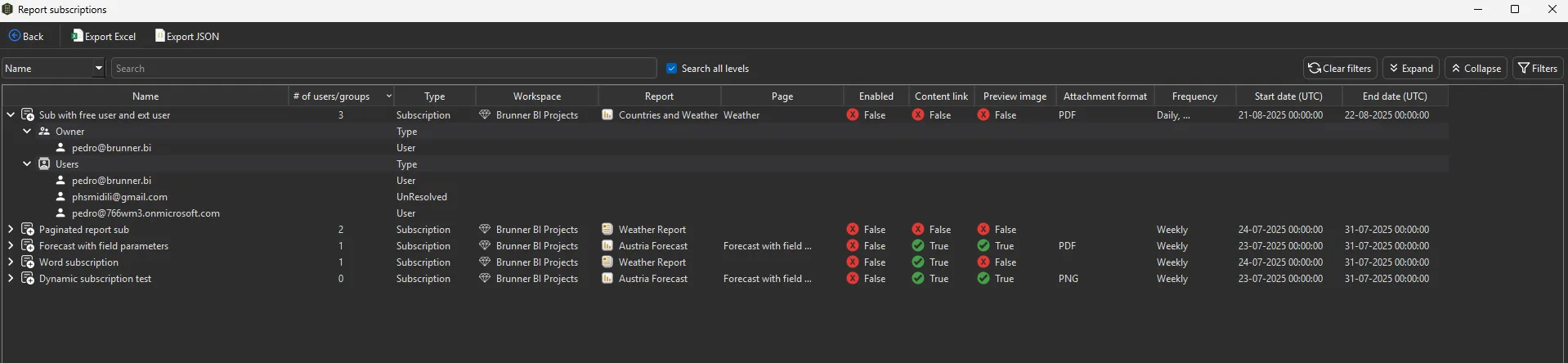
Every report subscription across the whole tenant, in one tree — for both Power BI reports and paginated reports. Each top-level row is a subscription; expand it to see its Owner and every recipient under Users — resolved users, groups, or UnResolved entries (external, guest, or free accounts the service couldn’t resolve to a tenant identity).
Every subscription carries:
- Name and # of users / groups it goes out to
- Type — the subscription type
- Workspace, Report, and Page it renders — the Report is either a Power BI report or a paginated report
- Enabled — whether the subscription is currently active
- Content link / Preview image — what the email includes
- Attachment format — PDF or PNG
- Frequency — Daily, Weekly, and so on
- Start date / End date (UTC) — the subscription’s active window
This is information the Power BI Service does not surface anywhere in one place — there is no tenant-wide “who is subscribed to what” view in the portal. Measure Killer builds it from the admin API.
Why subscriptions matter — two risks worth auditing
1. They can deliver reports outside the access boundary
A subscription pushes a rendered copy of the report (a PDF/PNG attachment, or a link) to everyone on its recipient list — on a schedule, completely outside the permission model. Those recipients do not need access to the report itself. So a subscription can route sensitive content to people who could never open the report directly — including external recipients, or addresses the service can’t resolve to a tenant identity (flagged as UnResolved).
A normal access audit won’t catch this, because the delivery happens through the subscription engine, not through report permissions. Cross-reference subscription recipients against Access & permissions to find reports leaving the boundary you think you’ve drawn.
2. They consume capacity on every send
Every subscription triggers a scheduled render of the report on your capacity. One or two are nothing — but hundreds of daily subscriptions across the tenant become a large, easily-overlooked driver of Capacity Unit consumption and of peak load at the times they all fire.
If Capacity metrics shows background or scheduled consumption on a report that nobody seems to be opening interactively, report subscriptions are a prime suspect — sort this window by Frequency to find the Daily senders driving the cost.
Run the analysis
- Enable it up front (admin only). In the Pre-filters window before the scan, turn on fetching report subscriptions. This option is only available in admin mode — see Run a tenant-wide scan.
- Scan and complete Phase 2 — select the reports and click Analyze.
- On the Power BI reports tab, click Subscriptions to open the Report subscriptions window.
- Use Search with Search all levels to find a recipient anywhere in the tree, Expand / Collapse to open the whole tree, Filters to narrow it, and click any column header to sort.
Common workflows
- Find content leaving the access boundary. Expand subscriptions and look for UnResolved recipients or external domains — these are reports being mailed to people outside your tenant’s access model.
- Find the capacity hogs. Sort by Frequency to surface the Daily subscriptions, then tie the matching reports back to Capacity metrics to quantify the CU cost.
- Clean up stale subscriptions. Filter for subscriptions whose End date has passed or that are no longer Enabled — they still clutter the inventory and, if re-enabled, resume consuming capacity.
- Review high-fan-out subscriptions. Sort by # of users / groups to find subscriptions blasting a report to large recipient lists.
Export the data
The toolbar offers Export Excel and Export JSON (paid editions only — disabled during the trial). Report subscriptions are also part of the full JSON export bundle — see the Exports overview.
Related
- Power BI reports inventory — the tab the Subscriptions button lives on, alongside views, load times and custom visuals
- Capacity metrics — scheduled subscription sends are a common hidden driver of report CU consumption
- Access & permissions — subscriptions can deliver reports outside the visible access boundary
- Report views & opens — interactive consumption, to compare against scheduled subscription delivery
- Run a tenant-wide scan — enable subscriptions in the Pre-filters window before scanning