 Measure Killer
Clean your Power BI model — advanced optimization
Go beyond unused artifacts — the Clean your model tab finds items that are referenced but pointless: hidden visuals, dead pages, auto relationships, and more.
Last updated · July 27, 2026
Start here: run a scan first. The Clean your model tab is empty — and may not even be visible — until you have completed a scan. It works entirely on metadata Measure Killer has already fetched; it never fetches anything on its own. If you don’t see the tab or it has nothing to show, run a local scan or an online scan first, then reopen it.
Unused vs. unnecessary
Measure Killer’s core analysis classifies artifacts as unused when they have zero references. But many artifacts are technically referenced yet serve no practical purpose:
- A column that only appears in a hidden visual nobody sees
- A measure that only exists in a page with zero views
- An auto-detected relationship that Power BI created on its own
The Clean your model tab targets these cases — artifacts that maintain technical references despite having no practical utility.
How it works
Once your scan has finished, open the Clean your model tab (it becomes available in the app only after a scan completes). It presents a curated list of improvement suggestions, each addressing a specific cleanup scenario. For most suggestions, the tool estimates the potential model size reduction so the biggest wins surface first.
Most suggestions only appear when the artifact is used in that one single situation, and nowhere else. This prevents false positives when artifacts serve multiple purposes.
Only suggestion 1 (Remove unused artifacts) can be applied automatically by Measure Killer — via Clean TMDL export or 1-click cleanup. All other suggestions are advisory: Measure Killer identifies the issue and the affected artifacts, but the fix is applied by you in Power BI Desktop, the Service, or any tool of your choice. You can export the full details of every suggestion to work through them at your own pace.
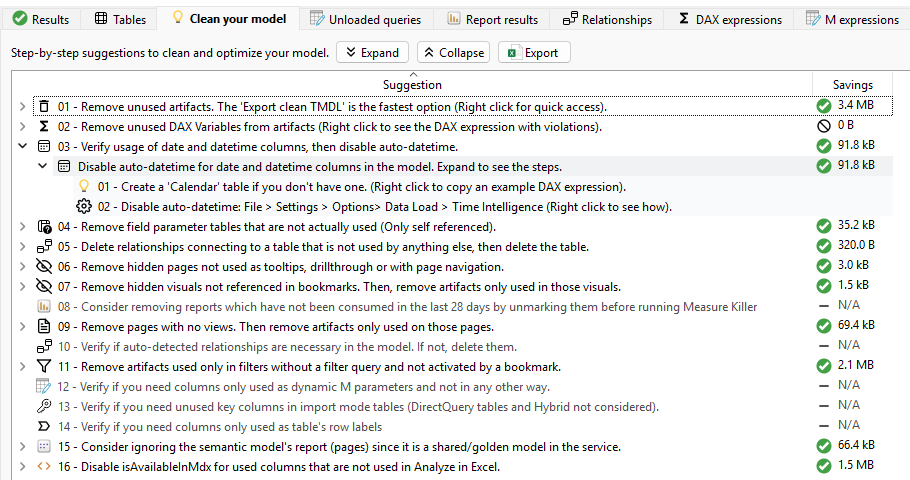
All suggestions
1 — Remove unused artifacts
The foundational suggestion — the same job covered in depth by Find and remove unused measures and columns. Targets artifacts (tables, columns, measures, relationships) lacking any references or depending solely on other unused artifacts. Export clean TMDL is the fastest option — apply it via the TMDL view in Power BI Desktop or the Service’s web-based TMDL view.
2 — Remove unused DAX variables from artifacts
Scans measures, calculated columns, and tables for DAX variables that are defined but never referenced. Expand the suggestion, right-click an affected artifact, and select “DAX expression with violations” to view highlighted unused variables.
3 — Disable Auto Date/Time
Auto Date/Time creates hidden date tables for every date column in your model, bloating size with no benefit if you have your own calendar table. The tool helps by:
- Supplying generic calendar table DAX expressions
- Tracking where auto date/time is used so you can replace references
- Guiding you toward disabling the setting in File → Options → Data Load
4 — Remove field parameter tables that are not actually used
Field parameter tables are a special case due to their self-referential column structure. When a field parameter table exists solely for its own use and nowhere else, the tool suggests deleting both the table and any associated columns or measures used exclusively within it.
5 — Delete relationships connecting to unused tables
These relationships attach one or more model tables to tables that would otherwise be unused. Delete the relationship first, then remove the orphaned table.
6 — Remove hidden pages not used as tooltips, drillthrough or page navigation
Pages that meet all three criteria:
- They are hidden
- They don’t function as tooltip or drillthrough pages
- They lack page navigation functionality
Delete these pages and remove any artifacts appearing exclusively on them.
7 — Remove hidden visuals not referenced in bookmarks
Visuals that are both hidden and unreferenced in any bookmark. Delete the visual and any artifacts used exclusively within it.
Note: Personal bookmarks created in the Power BI Service are not considered in this suggestion.
8 — Consider removing reports without recent consumption
Available in Shared Model Online modes only — Measure Killer needs the report’s consumption data, which requires Get report page views and load times to be enabled in the pre-filters before the scan. This is a scan-time setting, not the Activity logs action. Reports showing zero opens within the past 28 days receive this suggestion. Unselect such reports, rerun the analysis, and then remove artifacts appearing exclusively within them.
9 — Remove pages with no views
Targets individual pages displaying zero views within 28 days (as opposed to suggestion 8 which targets entire reports). Delete these pages and remove associated artifacts.
10 — Verify if auto-detected relationships are necessary
When “Auto detect new relationships after data is loaded” remains enabled, Power BI automatically creates relationships. This suggestion flags them for verification. Probably the hardest suggestion to apply — verifying if you need an active relationship is usually not straightforward. Use Table Relations to understand the impact before removing.
11 — Remove artifacts used only in filters without active filters
Some columns appear solely in visual, page, or report-level filters where no active filter query exists (appearing as “is (All)” in Power BI) and no bookmark activation occurs. Remove the filter first, then delete associated artifacts.
12 — Verify columns used only as dynamic M parameters
Columns appearing only as dynamic Power Query parameters in DirectQuery tables and nowhere else. Unbind such columns by opening Model view, selecting the column, and clearing the “Bind to parameter” dropdown.
13 — Verify unused key columns in import mode tables
For Import tables containing key columns that lack other uses. Unmark them as keys, verify that relationships and DAX continue functioning, and delete them if appropriate. DirectQuery and Hybrid tables are excluded from this suggestion.
14 — Verify columns only used as table row labels
Columns marked as Default Label but unused elsewhere. Unmark them, verify that visuals and measures continue working, then delete if necessary.
15 — Consider excluding the semantic model’s default report
In shared (golden) model architectures with multiple connected reports, the semantic model’s automatically generated report often contains artifacts nobody uses. Exclude that report from the analysis, rerun the tool, and remove artifacts appearing only there.
16 — Disable isAvailableInMdx for columns not used in Analyze in Excel
Columns marked with isAvailableInMdx = true but unused in Analyze
in Excel. Disabling this property reduces storage. Modify through
the TMDL view in Power BI Desktop or the Service.
Related
- Find and remove unused measures and columns — the foundational cleanup workflow that Clean your model builds on
- Best-practice analysis — the rule-based counterpart covering DAX anti-patterns, naming, and formatting
- Table Relations — understand relationship impact before removing auto-detected ones (suggestion 10)