 Measure Killer
Audit personal workspaces — the governance black box
Personal workspaces are Power BI's governance blind spot. Measure Killer surfaces what's inside them, who reports are shared with, and which sit on paid capacity.
Last updated · June 22, 2026
Why personal workspaces are a black box
Every Power BI user gets a personal workspace (“My workspace”), and most governance tooling can’t see inside them: there’s no admin screen that lists what each person has built there, who they’ve shared it with, or what it connects to. Content quietly accumulates — and gets reshared — completely outside any managed workspace.
Measure Killer is one of the few tools that can shine a light in. With a Fabric Admin account, a tenant scan enumerates personal workspaces alongside everything else, so you can audit them three ways.
1. Inventory — how much lives in there
Before you can govern personal workspaces you need to know what’s in them. A tenant scan inventories every personal workspace alongside the regular ones, with per-workspace counts of the items each holds — reports, semantic models, dataflows, and more. Sort by item count to find the people running a whole BI practice inside “My workspace”: someone keeping dozens of reports and several models there is a prime migration (and risk) candidate. See Workspaces inventory and Tenant summary.
2. Who’s sharing reports out of personal workspaces
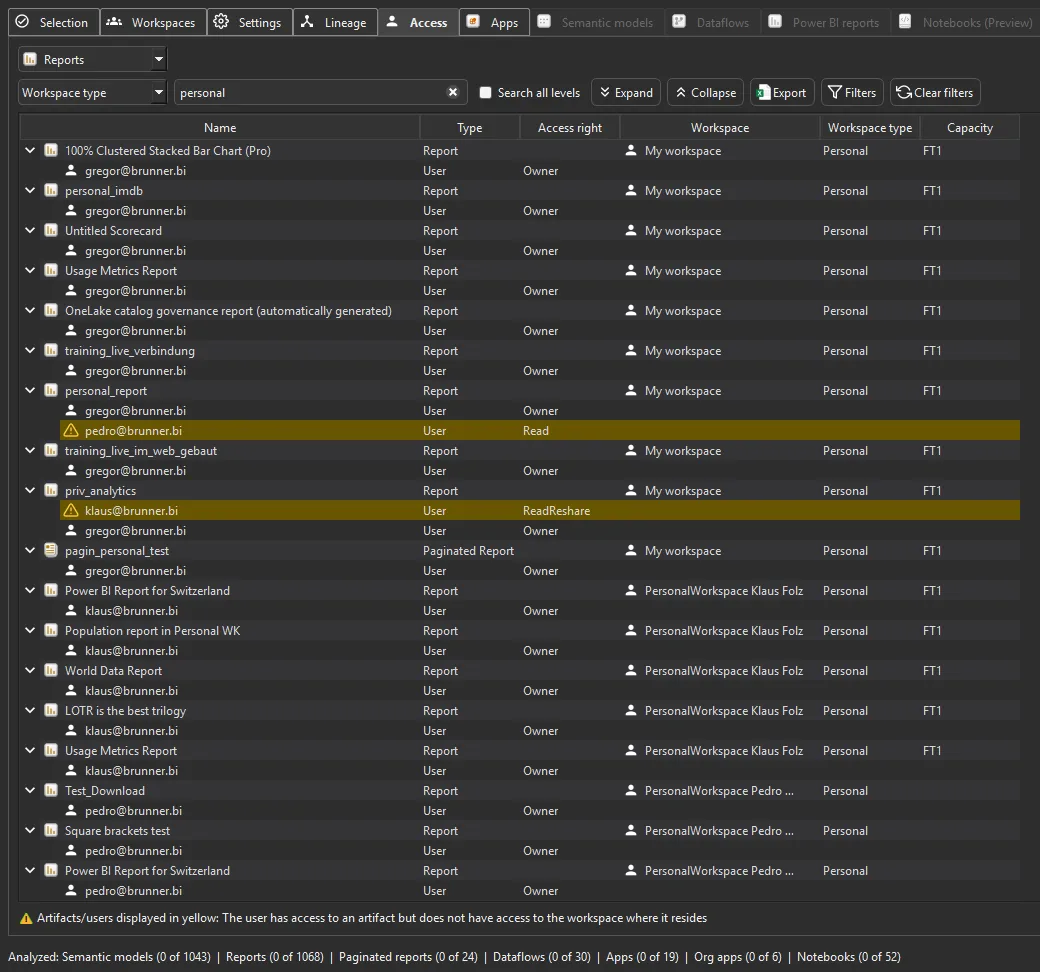
In the Access tab, switch the view to Reports and filter the Workspace type column to Personal. Each report row expands to show its owner and everyone it’s shared with, plus the access right — Owner, Read, or ReadReshare.
Rows shown in yellow are the ones to watch: per the legend, the user has access to an artifact but not to the workspace where it resides — in other words, a report shared out of a personal workspace to someone who was never added to that workspace. ReadReshare is especially worth reviewing, since that person can pass the report on again.
This answers the question no admin portal will: who is quietly sharing content from their personal workspace, and with whom?
3. Premium / Fabric capacity sitting on personal workspaces
The Capacity column reveals when a personal workspace is backed by a
Premium or Fabric capacity (e.g. FT1) rather than shared capacity.
Personal workspaces on a paid capacity consume CUs and almost always slip
through cost governance — nobody is reviewing “My workspace” for capacity
spend. Filter or sort by Capacity to find every personal workspace
that’s been placed on one, then move them off or bring them into a managed
workspace.
4. Reports built on production semantic models
A personal report that connects to a shared / production semantic model is an untracked dependency: if it misreports or breaks, it’s doing so off your governed data, outside any managed workspace. Right-click a production model and choose View end-to-end lineage (or use the Lineage tab) to trace its downstream reports — and watch for any that live in a personal workspace. See End-to-end data lineage in Power BI.
What to do with the findings
- Bring important content into a managed workspace so it’s backed up, access-controlled, and visible to governance.
- Revoke risky reshares surfaced by the yellow rows — especially ReadReshare grants on sensitive reports.
- Move personal workspaces off paid capacity to stop unmanaged CU spend.
- Export the evidence — paid editions can export the Access view to Excel or JSON for an access review or offboarding pack.
Related
- Access & permissions — the full Access view this builds on
- Grant or remove workspace access in bulk — act on what you find (admins only)
- Capacity metrics — tie personal-workspace capacity back to CU spend
- End-to-end data lineage in Power BI — trace which reports build on a production model
- Workspaces inventory — item counts per workspace, including personal ones
- Run a tenant-wide scan — the scan that surfaces personal workspaces