 Measure Killer
Grant or remove workspace access in bulk
Admins only — add or remove a user's or AD group's access to one or many workspaces at once, directly from Tenant Analysis.
Last updated · June 12, 2026
What it does
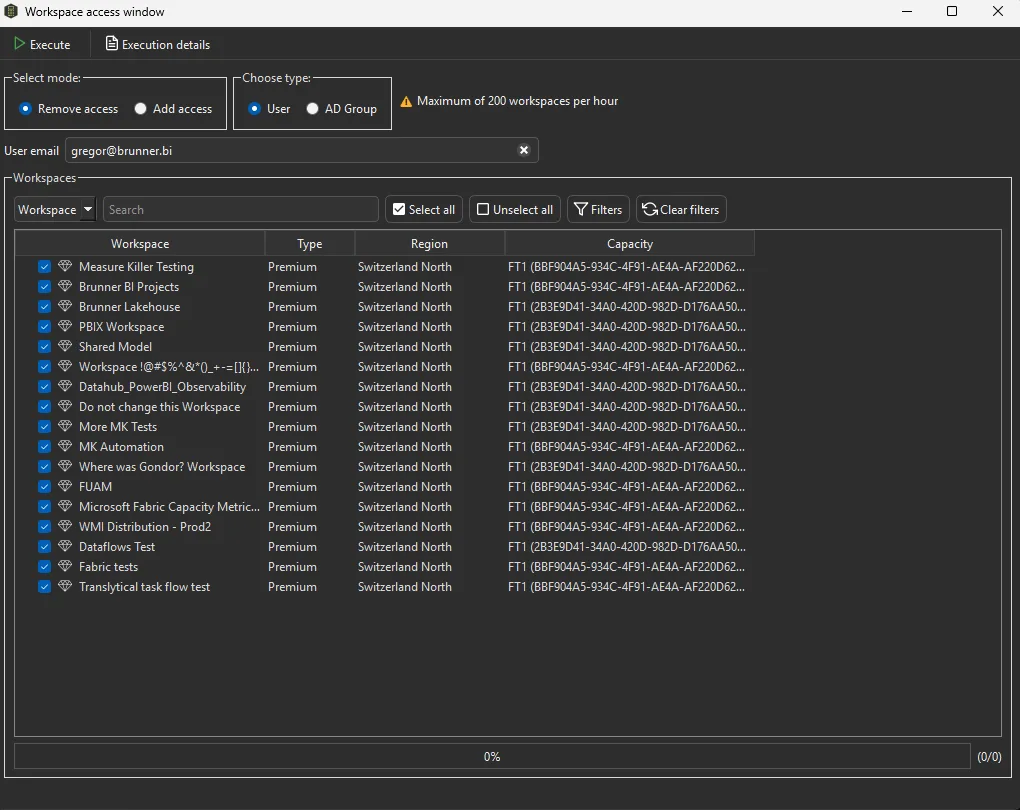
The Workspace access window lets a tenant admin grant or remove access for a single user or an AD group across one or many workspaces in one go — instead of clicking through each workspace’s access settings in the Power BI Service.
This is an admin-only action: it writes role assignments to your tenant, so it requires a Fabric Administrator (or Power Platform Administrator) account and is not available in Limited Tenant Analysis mode.
Open it
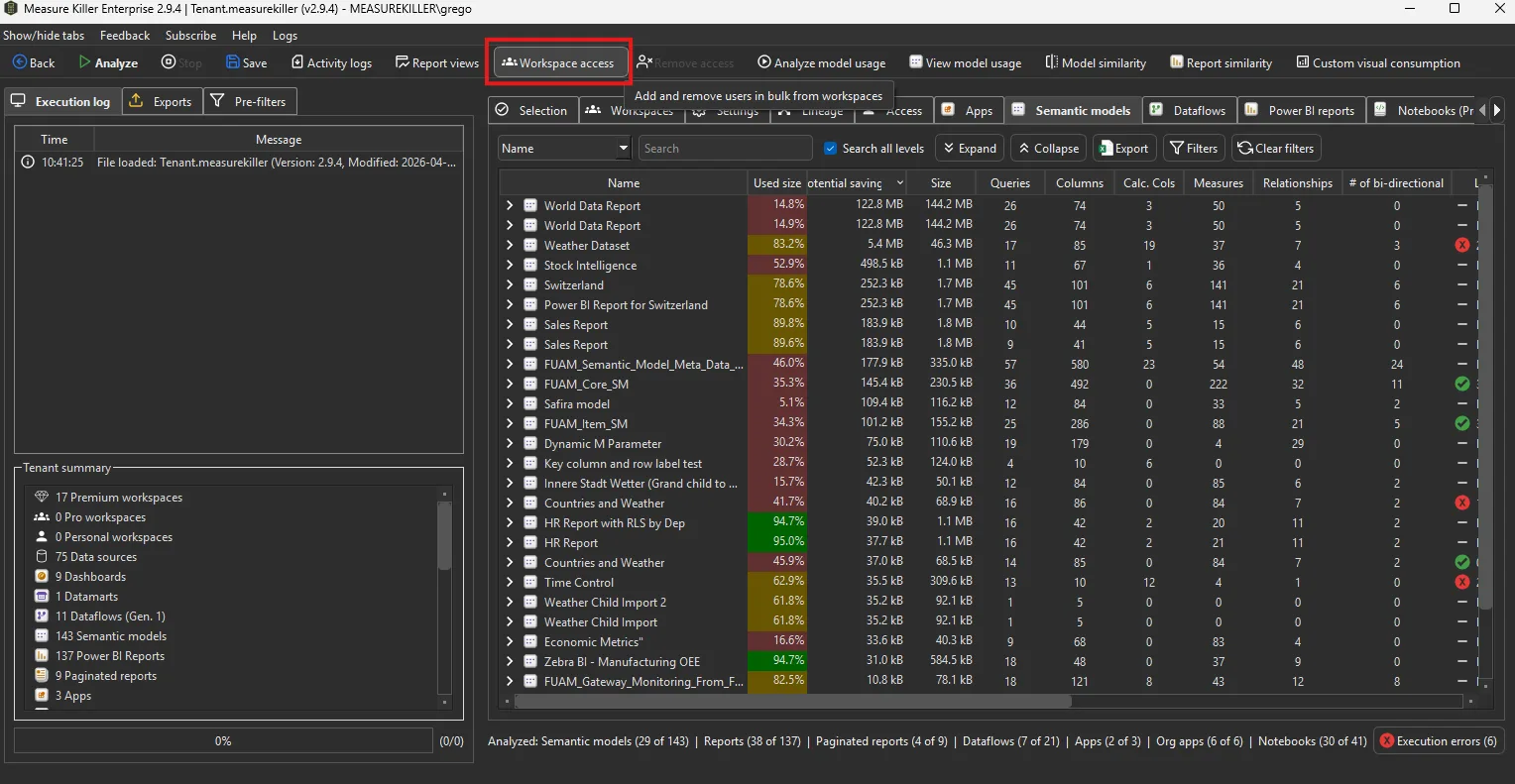
In Tenant Analysis, click Workspace access in the toolbar. The button is only available to accounts with tenant-admin rights.
How it works
- Select mode — Add access or Remove access.
- Choose type — User (enter the user’s email) or AD Group.
- Pick the role (Add access only) — Admin, Member, Contributor, or Viewer — the workspace role the user or group will be granted.
- Pick the workspaces — tick one or more from the list. Use Search, Filters, or Select all / Unselect all to build the set quickly; each row shows the workspace’s Type, Region, and Capacity.
- Click Execute. The progress bar tracks the run, and Execution details shows the per-workspace result.
Throttling limit. A maximum of 200 workspaces per hour can be processed — the Power BI / Fabric admin APIs rate-limit these writes. For larger batches, run them in hourly waves.
Common uses
- Onboard a new team member. Add a user to every workspace their team owns in a single pass, instead of one workspace at a time.
- Offboard a leaver. Remove a departing employee from all the workspaces they can reach — pair it with Access & permissions to first list everywhere they have access.
- Roll out by AD group. Grant an AD group access across a set of workspaces so membership stays managed centrally in Entra ID.
Related
- Access & permissions — audit who can reach what before you change it
- Run a tenant-wide scan — the Tenant Analysis workflow this lives in