 Measure Killer
Custom visual consumption — audit, compliance & security
Every custom (non-Microsoft) visual across your Power BI tenant — which reports use it, how many users consume it, whether it's certified, and licensing.
Last updated · July 30, 2026
What you get
Every custom (non-Microsoft) visual in use across the scanned tenant, with:
- Visual name and publisher — which custom visual it is
- Certified vs. uncertified — whether the visual has passed Microsoft’s certification process
- Reports — which Power BI reports contain the visual
- Instances — how many times the visual appears across reports and pages
- Users — which users have built or consumed reports containing the visual, and how many
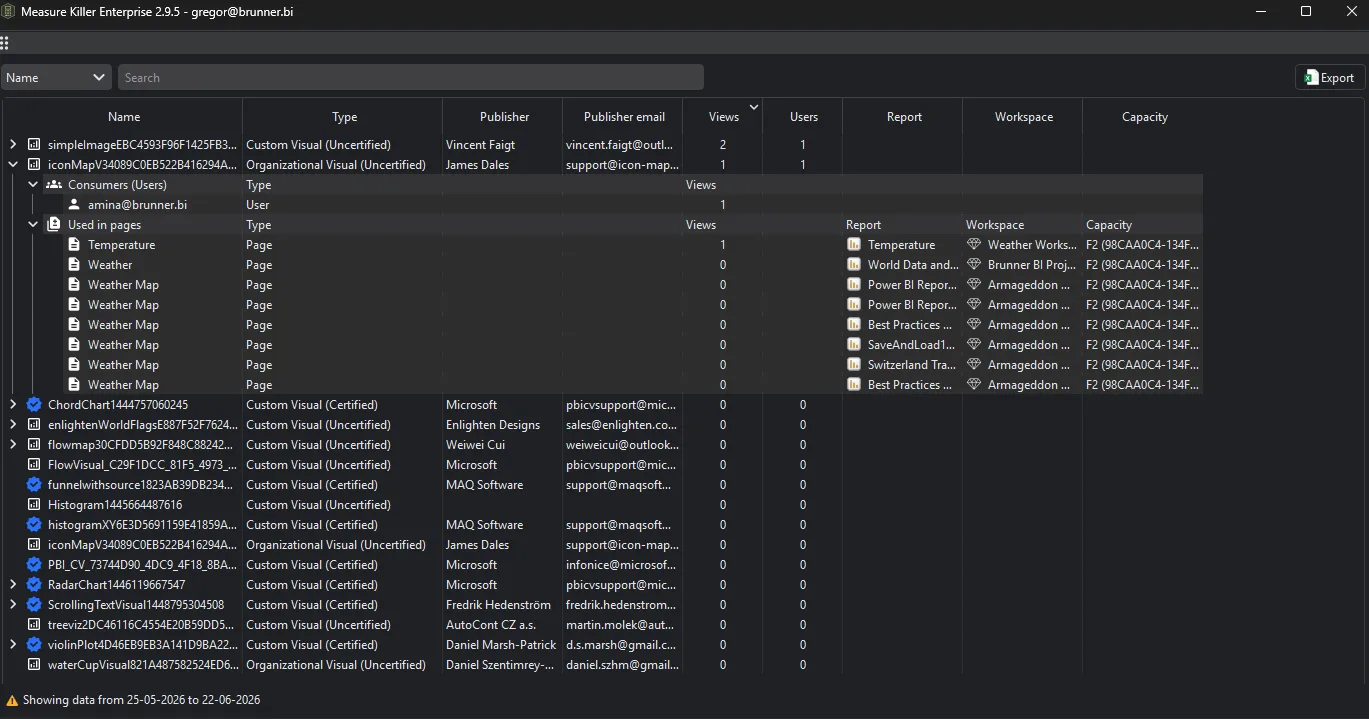
Expand any visual to see its Consumers (Users) — who actually viewed reports containing it — and Used in pages, the individual report pages it appears on with their workspace and capacity.
This gives you three things in one view: a security audit (uncertified visuals), a license compliance check (per-user counts vs. what you’re paying for), and a standardization inventory (which visuals your organization actually uses).
Why this matters
Security — uncertified visuals can send data externally
Custom visuals run JavaScript inside the Power BI rendering engine. Certified visuals have been reviewed by Microsoft and meet specific security and code standards — they cannot send data outside Power BI.
Uncertified visuals have not been through this review. They may send data to external endpoints, either intentionally (a visual that posts to a third-party service) or through a compromised supply chain. Every uncertified visual in your tenant is a potential data exfiltration vector.
Measure Killer flags each visual’s certification status so you can identify uncertified visuals across every report in the tenant in one scan — rather than opening reports one by one in Power BI Desktop.
License compliance — are you paying the right amount?
Some custom visuals are licensed per user. Measure Killer shows how many users actually consume reports containing each visual, so you can compare that count to what you’re paying for:
- Overpaying — you’ve licensed a visual for 200 users but only 30 actually consume reports that use it. Reduce the license count and save money.
- Under-licensed — 150 users consume reports containing a visual you’ve only licensed for 50. You’re out of compliance and at risk of an audit finding.
Standardization — what’s actually in use?
Large tenants accumulate custom visuals over time as different teams adopt different tools. Measure Killer gives you the full picture: which visuals are in use, where, and by how many people. Use this to define an approved-visual list and identify reports that use non-standard or deprecated visuals.
Run the analysis
- Run a tenant-wide scan — when configuring the pre-filters, make sure the custom visual consumption toggle under Performance is enabled.
- Complete Phase 2 by selecting items and clicking Analyze.
- The custom visual consumption data is available in the Tenant Analysis UI. The Power BI reports tab also shows a Custom visuals column with counts of certified vs. non-certified visuals per report.
Common workflows
- Security audit — find uncertified visuals. Filter for visuals that are not certified. For each one, check which reports use it and how many users are exposed. Decide whether to replace it with a certified alternative or accept the risk. Reports with uncertified visuals in sensitive workspaces (finance, HR, customer data) should be flagged first.
- License compliance review. For each licensed custom visual, compare the user count from Measure Killer against your license entitlement. Flag any where actual users exceed the license count. Also flag visuals where you’re paying for far more users than actually consume the visual — these are savings opportunities.
- Deprecation planning. Identify visuals that are no longer maintained by their publisher or that Microsoft has flagged for removal. See which reports and users are affected, then plan a migration to a supported alternative before the visual stops working.
- Approved-visual policy. Export the full list of custom visuals in use. Compare it against your organization’s approved-visual list (if you have one) or use it to create one. Flag reports using non-approved visuals for review.
- Pre-migration inventory. Before moving workspaces to a new capacity or migrating to Fabric, audit custom visuals to ensure compatibility. Some visuals may not work in new environments or may need updates.
Export the data
The custom visual data is visible as raw data in the app — you can browse the underlying numbers directly and export to Excel from the toolbar.
For programmatic use, the Exports sidebar includes a Custom visuals JSON export with the full inventory of custom visuals from fetched reports.
With MK Automation, custom visual consumption data lands in Fabric Lakehouse or Warehouse tables on a schedule — feed it into your governance dashboard or compliance tooling.
Related
- Power BI reports inventory — the tab where certified vs. non-certified custom visual counts appear per report
- Best-practice analysis — flags unused custom visuals in reports as a best-practice violation
- Run a tenant-wide scan — the scan that collects custom visual data (enable custom visual consumption in the pre-filters)
- Exports overview — full list of JSON exports including custom visuals
- MK Automation — scheduled, unattended scans with results written to Fabric tables or your data warehouse