 Measure Killer
Find broken DAX in Power BI semantic models
Find broken DAX across every semantic model in your tenant — failing measures, calculated columns, and tables — drill into each artifact and its exact error.
Last updated · July 7, 2026
Availability: The # of DAX errors column — Measure Killer v2.9.5 and later.
What you get
Every model in the Semantic models tab gets a # of DAX errors column — how many DAX expressions in that model currently contain errors. It counts measures, calculated columns, and calculated tables alike, so any failing expression in the model is reflected in one number.
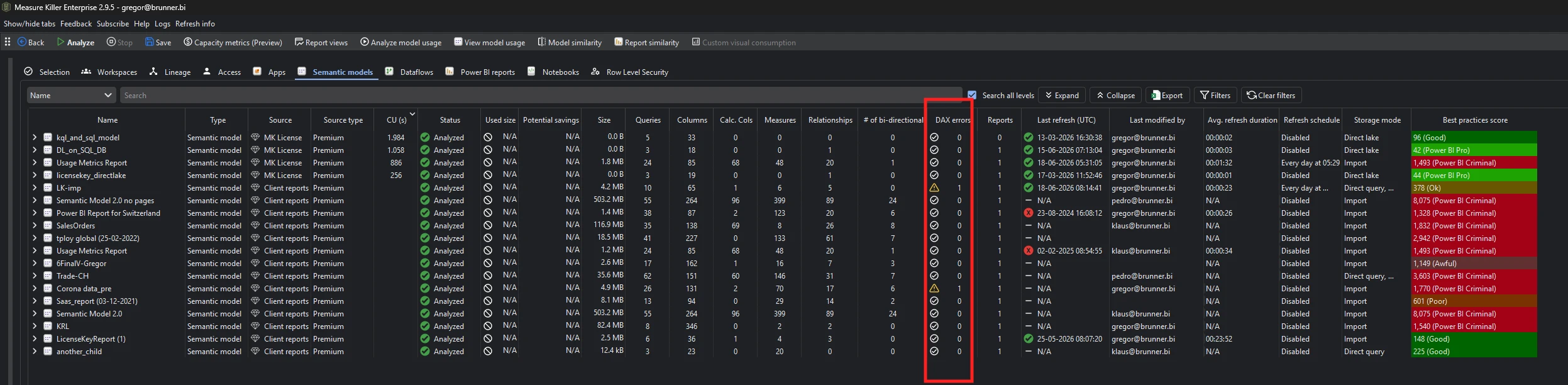
Anything above zero means broken DAX in that model — found without opening a single measure.
Why DAX breaks
A DAX expression breaks when something it depends on changes underneath it — usually without anyone touching the expression itself:
- A column or table was renamed or removed, so every measure or calculated column referencing it now fails.
- An upstream schema change — the source renamed a field and the Power Query step was fixed, but the DAX still points at the old name.
- A refactoring that didn’t propagate — a base measure was changed or deleted, breaking the measures built on top of it.
Broken DAX rarely announces itself. The model still refreshes and the report still opens; the breakage surfaces downstream as a broken visual — “Something’s wrong with one or more fields” — or, worse, as a silently wrong number.
Run the analysis
-
Run a tenant-wide scan and complete Phase 2 by selecting models and clicking Analyze.
-
Switch to the Semantic models tab.
-
Sort the # of DAX errors column (descending) to surface the models with the most broken expressions.
-
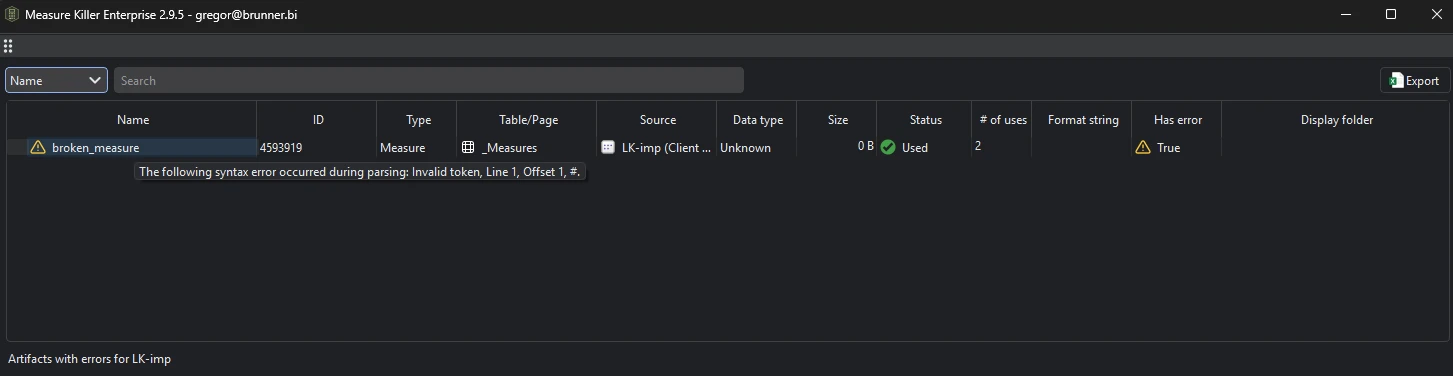
Drill into a model’s DAX errors to open the artifacts with errors window — every failing measure or calculated column, its status and number of uses, and the exact error message:
-
Switch to the DAX expressions tab to search the actual expression behind any error across every scanned model at once.
What the detail list shows
- Name and Type — the failing artifact and whether it’s a measure, calculated column, or calculated table.
- Table / Page and Source — where the artifact lives and which model it came from.
- Status and # of uses — whether it’s used, and how widely — so you can tell a broken-but-unused measure from one that breaks reports.
- Has error — flags the artifact as currently failing.
- Error message — the exact reason, e.g. “The following syntax error occurred during parsing: Invalid token, Line 1, Offset 1, #.”
Common workflows
- Fix the most-used expressions first. A broken measure with many uses is breaking visuals right now; a broken-but-unused one can wait. Sort the artifacts-with-errors window by # of uses.
- Verify nothing broke after a model change. After a schema change, a model cleanup, or a migration, re-run the scan and check the # of DAX errors column — the fastest tenant-wide answer to “did that change break any DAX?”
- Trace breakage from the report side. When a broken visual is caused by a failing expression, the detail view names the broken DAX — work model-first (fix the expression, every dependent visual recovers) or report-first (start from the high-traffic broken visual and trace back).
- Plan a rename up front. Before renaming a table or column, search the DAX expressions tab for every reference so you fix them in the same change instead of discovering the breakage afterwards.
What to do with the findings
- Fix the expression — repair the DAX in Power BI Desktop, the Service’s TMDL editor, or your tool of choice; restore or rename the artifact it depends on.
- Notify the owner — the Semantic models tab shows who last modified each model, so you know who to hand each finding to.
- Export to Excel / JSON — paid editions can export the inventory, including the error counts, for remediation tracking.
Related
- Semantic models inventory — the tab where the # of DAX errors column lives
- DAX expressions — search and inspect every expression behind the errors
- Find broken visuals — the report-side companion: where broken DAX hits your users
- Power BI governance & monitoring — catch broken visuals and broken DAX across the tenant
- Run a tenant-wide scan — the scan that populates the column