 Measure Killer
Workspaces inventory
A detailed inventory of every workspace in your tenant — owners, creation date, last activity, capacity assignment, and item counts — in one searchable table.
Last updated · June 26, 2026
What you get
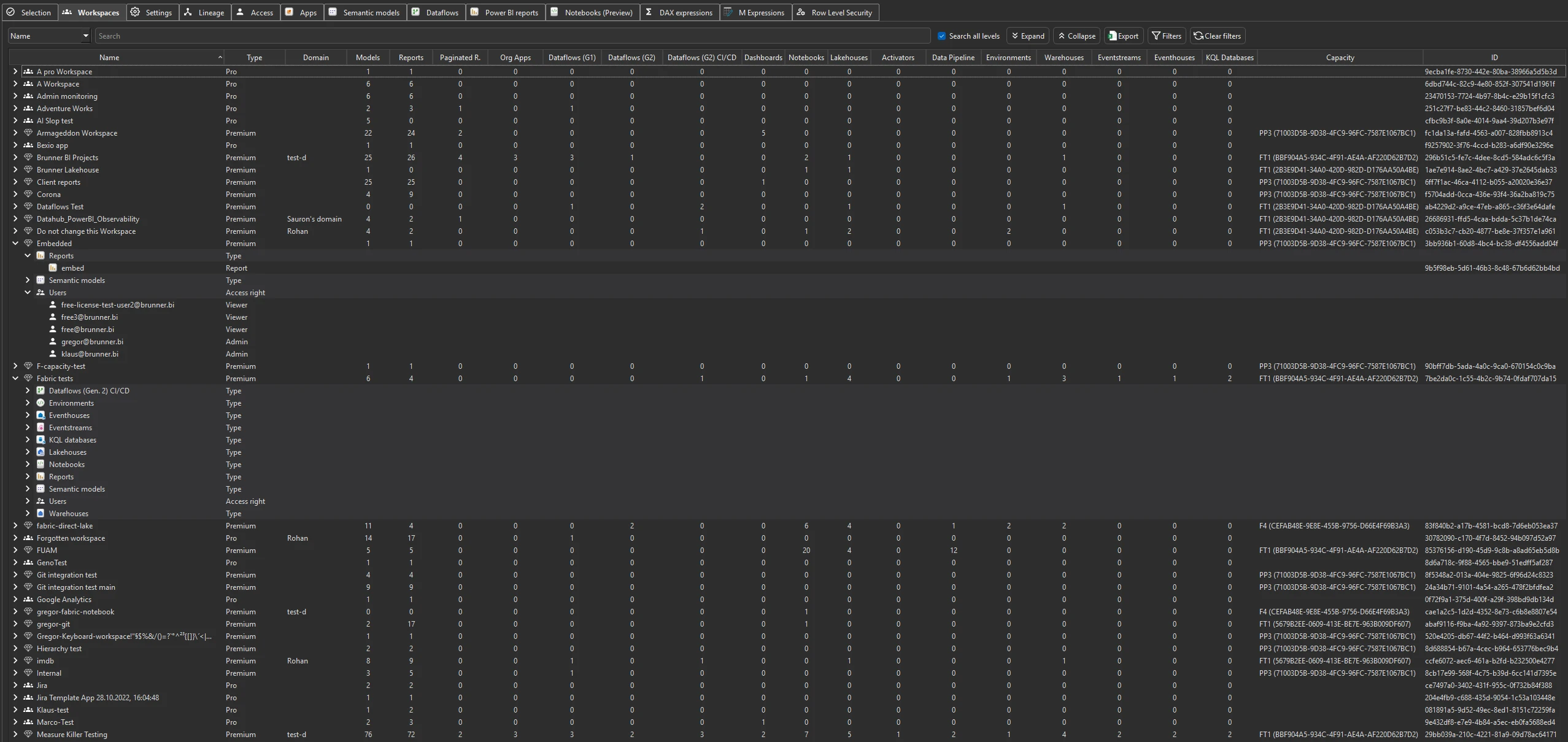
A detailed inventory of every workspace in scope — focused on governance rather than scan selection. For each workspace you see:
- Name — workspace name
- Type — Premium, Pro, or personal
- State — Active, Deleted, or other workspace states
- Domain — the workspace’s Fabric domain, if assigned
- Owners — who owns the workspace
- Users — the users with access to the workspace
- Creation date — when the workspace was created
- Last activity — when the workspace was last used
- Item counts — Reports, Models, Dataflows, Paginated Reports, Fabric items
- Capacity — the capacity the workspace is assigned to
The Selection tab is for picking what to scan; the Workspaces tab is for reviewing the inventory after scanning.
Run the analysis
- Run a tenant-wide scan — the Workspaces tab populates automatically after Phase 1.
- Switch to the Workspaces tab.
- Sort, filter, or search by any column.
Common workflows
- Identify orphaned workspaces. Sort by last activity to find workspaces that haven’t been touched in months. Cross-reference with the owners column — if the owner has left the organization, the workspace may be a candidate for cleanup or reassignment.
- Audit capacity assignments. Filter by capacity to see which workspaces are on Premium, which are on Pro, and whether any are on an unexpected capacity. Useful before capacity migrations or cost reviews.
- Inventory by domain. Sort or filter by the Domain column to group workspaces (and their items) by Fabric domain — e.g. a Finance or Sales domain — for a quick per-department inventory, or to spot workspaces with no domain assigned.
- Catch content on a trial capacity before it’s wiped. Filter by capacity to find workspaces sitting on a Fabric trial capacity. When the trial lapses and the capacity is deactivated, the content on it can be deleted entirely — an easy way to lose whole reports and models overnight. Spot them in the inventory, move them to a permanent capacity in time, and keep metadata backups running so the TMDL, M, and report definitions survive even if a capacity disappears.
- Track down deprecated item types. Microsoft keeps sunsetting older item types — Datamarts (deprecated) and Dataflows Gen1 (in maintenance mode; only Gen2 gets new features) are the usual suspects. The Dataflows and Fabric items counts here flag at a glance which workspaces still carry legacy items; for the exact breakdown open the Dataflows inventory (the Type column separates Gen1 from Gen2) and the Tenant summary for tenant-wide totals per item type. Knowing where they still live lets you plan migrations off them before support runs out.
- Find personal workspaces with shared content. In Full Tenant Analysis, personal workspaces (“My workspace”) appear in the list. Check item counts — a personal workspace with many reports or models may contain content that should be moved to a shared workspace.
- Baseline before a reorganization. Export the full workspace list as a snapshot before merging or splitting teams, so you can track what moved where.
What to do with the findings
- Export to Excel — click Export in the toolbar to export the full workspace inventory to Excel for offline analysis or sharing with stakeholders.
- Export as JSON — paid editions can also export as raw JSON for integration with governance dashboards or CMDB systems.
- Share the
.measurekillerfile — hand the scan to a colleague who can browse the same workspace data without re-running the scan.
Related
- Tenant summary — aggregate counts across the tenant
- Run a tenant-wide scan — the scan that populates this tab
- Access & permissions tracking — who has access to each workspace