 Measure Killer
How do I see the audiences of a Power BI app, what each one exposes, and who has access?
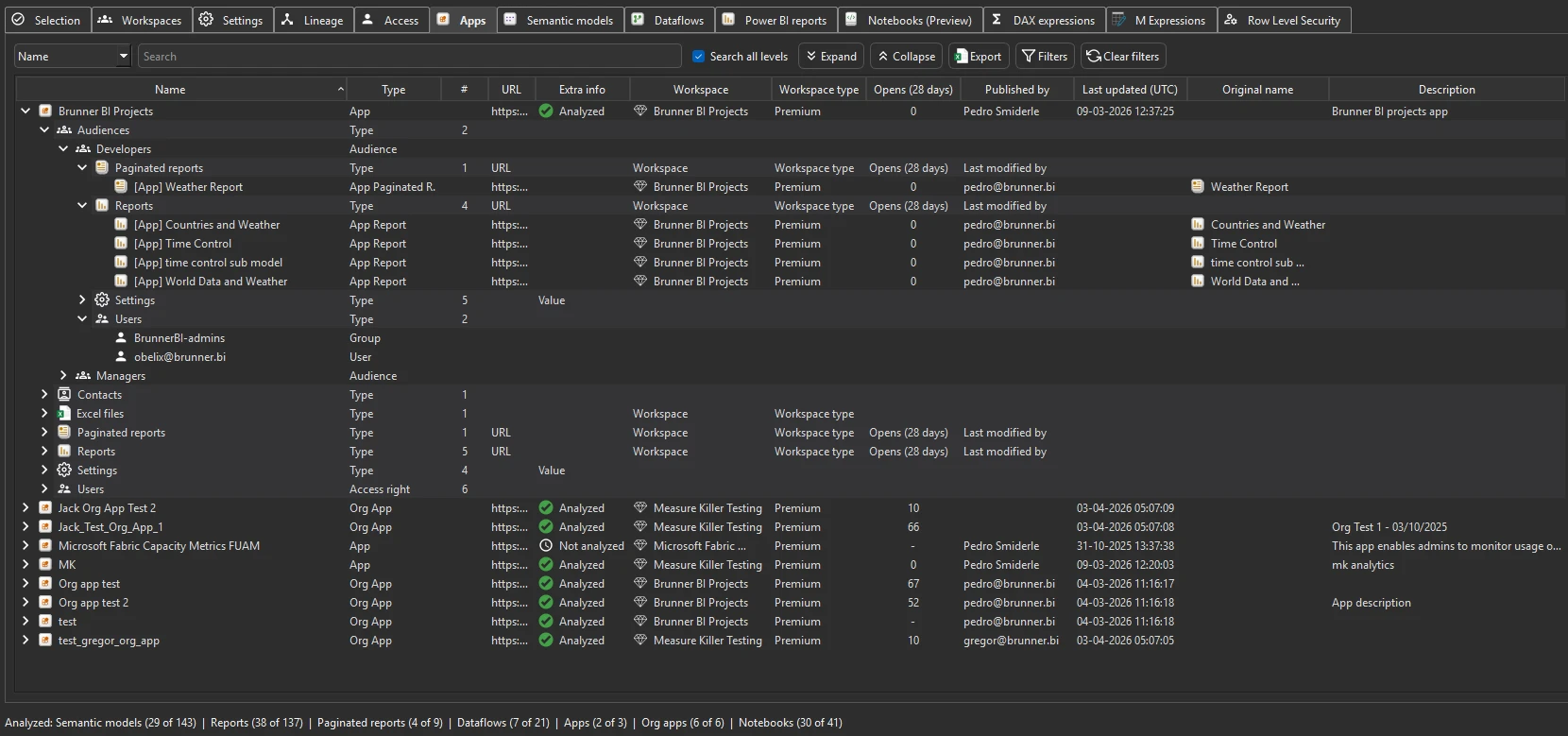
Run Tenant Analysis with Include apps ticked and open the Apps tab. Every app, organizational apps included, lists its audiences, the content each audience exposes, and the users and groups who can access the app and each audience.
Last updated · November 21, 2026
Steps
- Open Tenant Analysis and keep Include apps ticked in the filters. The Apps tab lists every app after the inventory pass (details).
- For the audiences and their content, tick the apps on the Selection tab and click Analyze (details).
- Open the Apps tab and expand an app. You see:
- its audiences, and for each one the reports and other content it exposes
- the users and groups assigned to each audience
- the workspace the app publishes from, its contacts and its opens in the last 28 days
- Who can open the app as a whole, across all its audiences, is shown in full Tenant Analysis. Limited Tenant Analysis lists the users per audience only.
- Sort by opens for apps nobody uses, and check whether audiences use security groups or long lists of individual users.
What you see
Go deeper
Something wrong or out of date on this page?