 Measure Killer
How to find unnecessary sorting in your M code
Sorting a table in Power Query costs us resources on every single refresh and the order is thrown away anyhow when we load the query into Power BI. Here is how to find all needlessly sorted queries across your tenant or workspace.
A while ago I was going through the M code of a client tenant looking for something completely different. What I kept running into instead were sorted PQ queries. Not one or two, but quite a few of them.
None of these sorts did anything though, they were running on every refresh and are very slow and inefficient operations.
Since then I look for this in every tenant I analyze and I find it almost everywhere, so I thought I would write down how to easily find them. Funnily, I even found one in a model that I built.
The sort never reaches your report
Most of us have sorted a column in Power Query at some point. We click on a column header, the rows are ordered nicely and we move on.
The problem is that this order does not propagate into Power BI, the sorting there will be different based on what VertiPaq deems most efficient. The order we created is simply not kept.
So our sort runs on every single refresh, produces a result and this result is then thrown away again.
Why sorts end up in our queries
In my experience most sorts in Power Query are probably there by mistake:
- Somebody sorted a column to have a quick look at the latest data and never removed the step afterwards.
- A query was copied from another model or from a template and the sort simply came along with it, I have sometimes seen many sorts within the same query like it would change something.
But cant the database do the sorting?
This is the part where I want to be a bit more precise, because it is only partly true. So let us look at it a bit closer.
For some data sources like SQL Server and similar databases Power Query is smart enough to fold the sorting into the query it sends to the source. The database then does the work instead of our own machine, which is of course better than sorting locally.
There are still two problems with this.
1) Folding is not guaranteed. Whether the sort is folded or not depends on the data source and on what the rest of our query is doing. We cannot look at a query and know this for certain.
2) Even if it folds, what did we actually gain? The database still has to do the sorting, this costs time and resources on the server, on every refresh.
When a sort is actually doing something
Now let us look at the other side. Of course there are cases where a sort makes sense and they usually look the same.
The most common example is adding an Index column. We sort the rows and then we number them. This numbering becomes a real column, it is loaded into the model and we can use it like any other column to sort a visual by. Similar cases are keeping the first or last row per group or filling values down a column where the order decides what gets filled in.
The one you really have to watch out for is a sort followed by Remove Duplicates (Table.Distinct). The deduplication keeps the first occurrence of every key, so the sort in front of it is what decides which row survives. If we sort by date descending we keep the newest record per customer, if we delete that sort we keep whatever row the source happened to return first.
Even in these cases the sort order itself does not survive. What survives is the column or the row that we built with it. This gives us a simple rule:
- If the sort is immediately followed by a step that depends on the order, it is doing something useful, otherwise we should consider removing it.
If you only want to check one model
Before we go tenant wide, one honest word about the small case. If you just want to check a single model that you have open in Power BI Desktop you do not need Measure Killer for this at all.
Open TMDL view, drag your semantic model into the window and press CTRL+F to search for Table.Sort. The M code of every query sits in the partition of each table, so you will find all of them right there. This is the most efficient approach.
If you already have Measure Killer installed then of course you can use it for a single model as well, this is completely free to use. The result is the same and the M code is a bit more comfortable to read. But installing a tool only for this does not make sense.
This changes completely as soon as we want to look at a whole workspace or at the entire tenant. Then there is no way around a tool.
Finding all sorted queries in the tenant
Sorting in Power Query is written as Table.Sort in the M code behind our query, so it is easy to search for, as long as we can see the M code of all our models and dataflows in one place. This is exactly what the M Expressions tab in Measure Killer gives us.
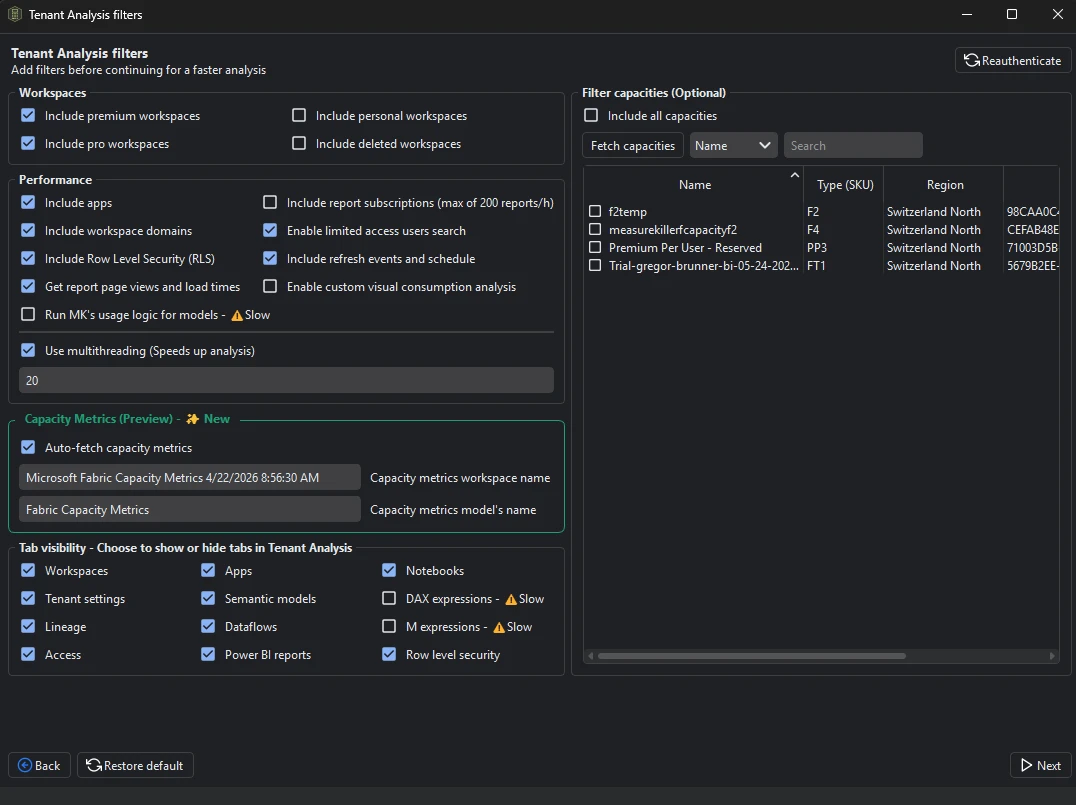
Start by running a tenant-wide scan (a workspace-level scan works as well if you only need a part of your tenant). Select the filters you want for the analysis and click on “Next”:
Then select the semantic models and dataflows you want to analyze and run the scan:
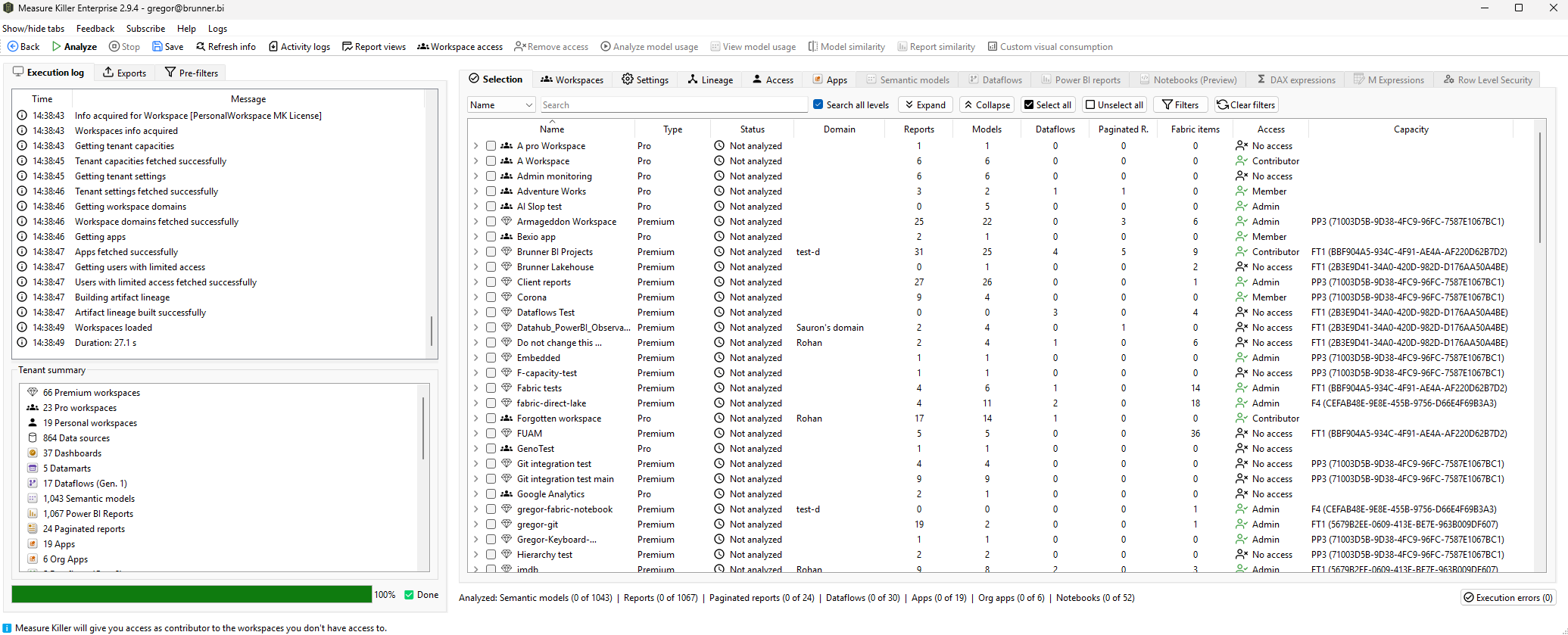
Now the important part, you have to complete Phase 2 by selecting your items and clicking on “Analyze”. The M code is only fetched during this deep metadata retrieval, before that the tab will stay empty.
After that all tabs in Tenant Analysis are populated. The one we need here is the “M Expressions” tab:
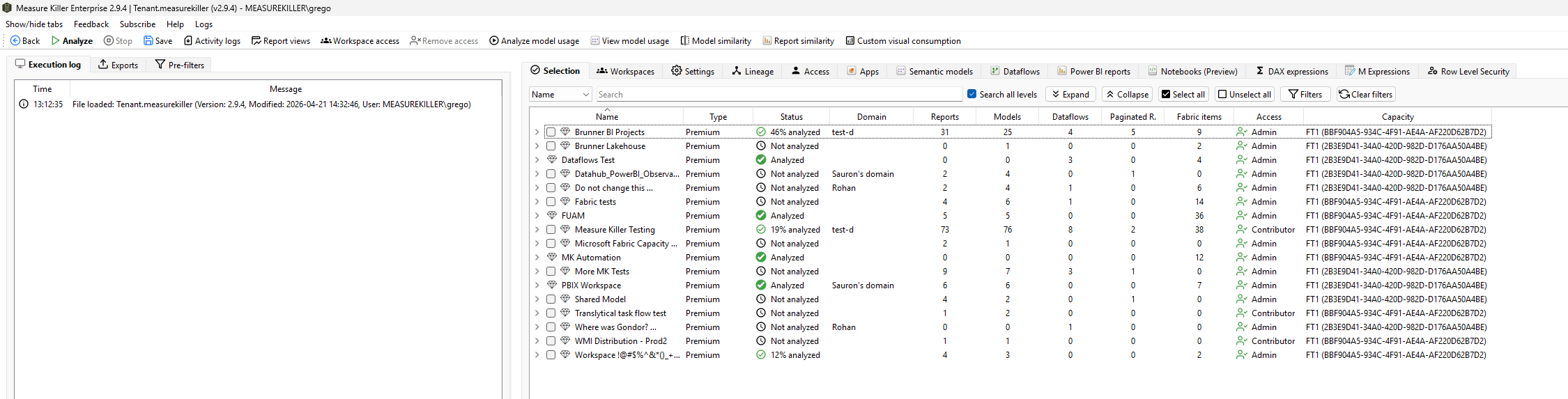
In this tab we get the Power Query code of every scanned semantic model and dataflow in one list:
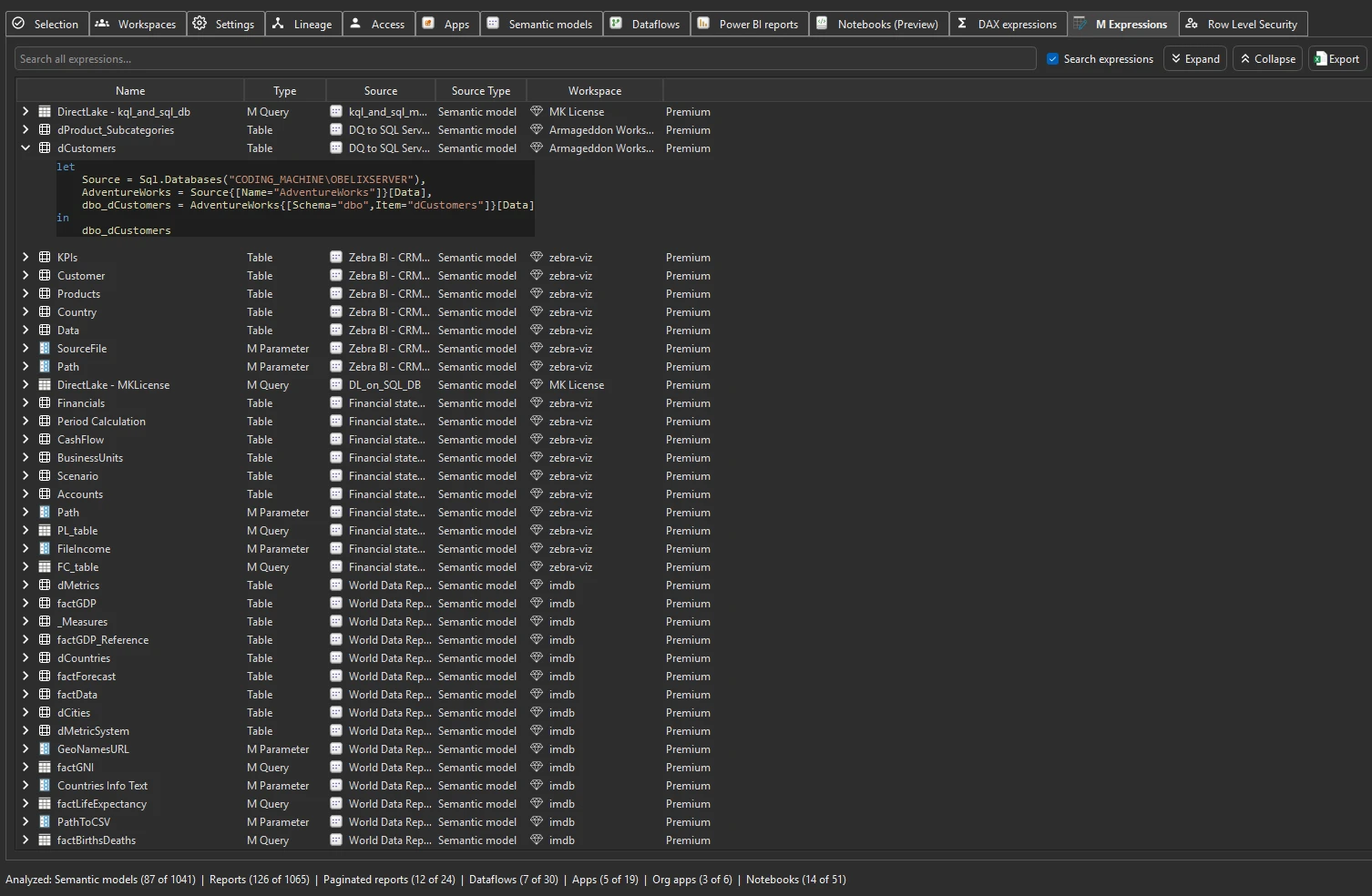
Now tick the “Search expressions” checkbox, this way the search also looks inside the code and not only at the query names, then search for Table.Sort:
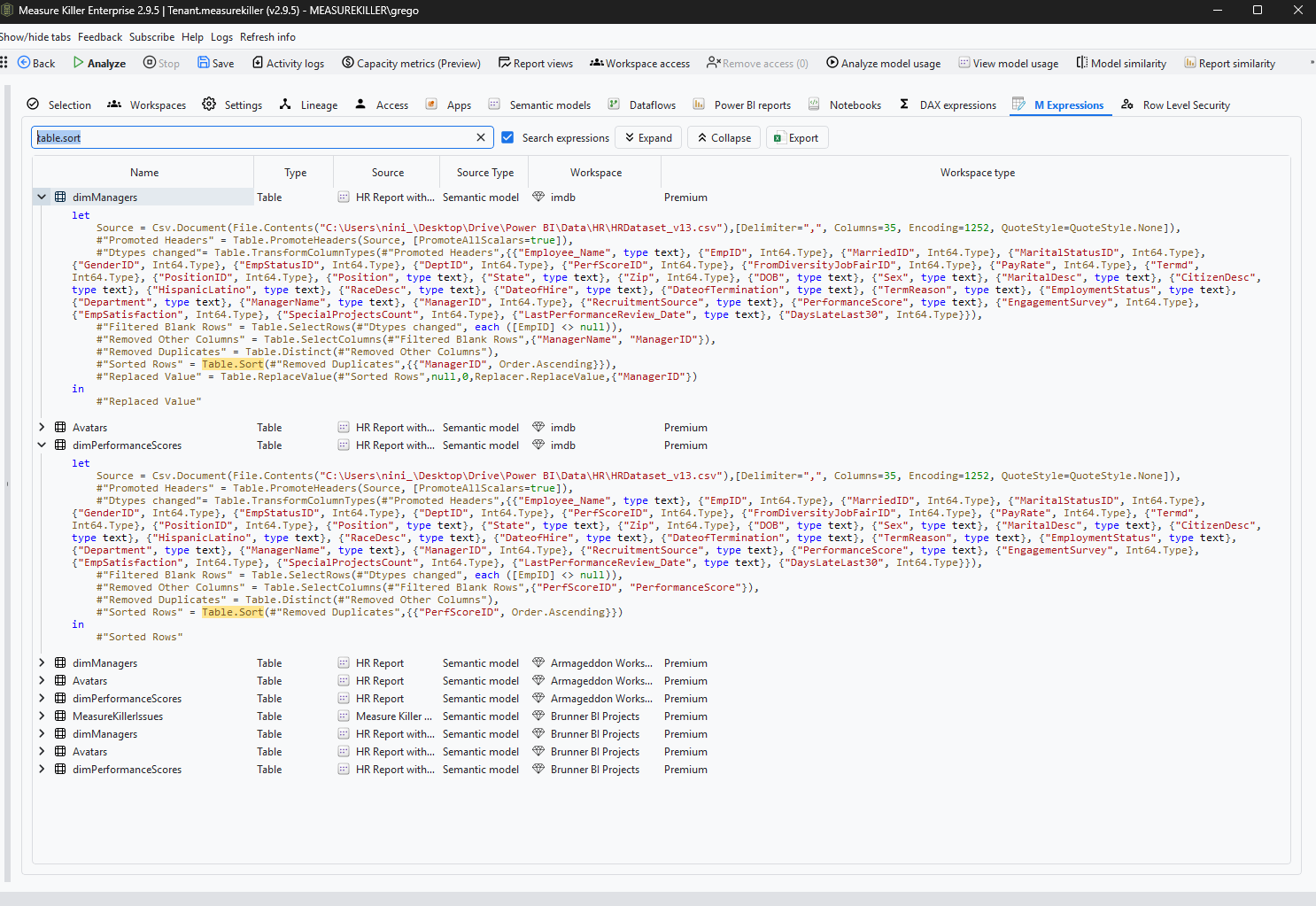
As you can see on the screenshot above, all queries that contain a sort come back together with the model or dataflow they belong to. In this example the sort is followed by a Table.ReplaceValue in one query and it is the very last step in the other one, so both of them are leftovers we can remove.
This is our list to work with.
What you need
As written above, what we pay for here is the scale, searching all semantic models and dataflows that live in the Power BI Service in one go instead of opening one file after the other. This is part of Measure Killer Enterprise and it is also included in MK Automation. For the access there are two options:
- Fabric Administrator (or Power Platform Administrator) gives us the M code of every semantic model and dataflow in the tenant, so this is the complete picture.
- Workspace Contributor is enough as well and runs in Limited Tenant Analysis mode. We will see the models and dataflows in the workspaces our account can already reach, which usually covers our own area.
The tenant-wide search is fully visible in a trial, only the Excel and JSON exports are disabled until a license is applied. You can request a free trial of Measure Killer here.
It is also nice that we can save the results to our computer so we do not have to scan every time we want to search for something. We just scan once and can then load back the results into MK tomorrow.
Cross check it with refresh times
A good way to see whether all of this was worth it is the Semantic models tab in Tenant Analysis, it gives us the Avg. refresh duration of every model.
A sort on a large table can take a serious amount of time on every single refresh, so check if the refresh times went down after. This is where we can really see the improvement.
What else we can do with this
For me Table.Sort is just one good example of a step that costs us something on every refresh and gives us nothing back. Once we are able to search the M code of a whole tenant in one place we can use the same approach for anything else we want to standardize or get rid of.
For the full how-to, including data source audits and planning database changes, have a look at the M Expressions doc. If you want to see what the search brings back in your own tenant, you can request a trial here.